How To Integrate Myuser Into Calendly
Connect Calendly to Myuser in 2 minutes with a personal access token - every booked meeting lands in Myuser and matches your campaign leads automatically.
In this guide, we'll connect your Calendly to Myuser with a personal access token. Once connected, every meeting booked through your Calendly links shows up in Myuser automatically: bookings from people in your campaigns get matched and marked as Meeting booked on the right lead, and every other booking is still recorded so you always have the full list of people who booked with you.
The setup takes about 2 minutes. The token is created inside your own Calendly account, you can see and revoke it at any time, and Myuser only READS bookings - it never changes anything in your Calendly.
Step 1: Open the API settings
Log in to Calendly, click your account menu, then Integrations & apps. On that page find and open API & webhooks. Under Personal access tokens click Get a token now, then Continue.
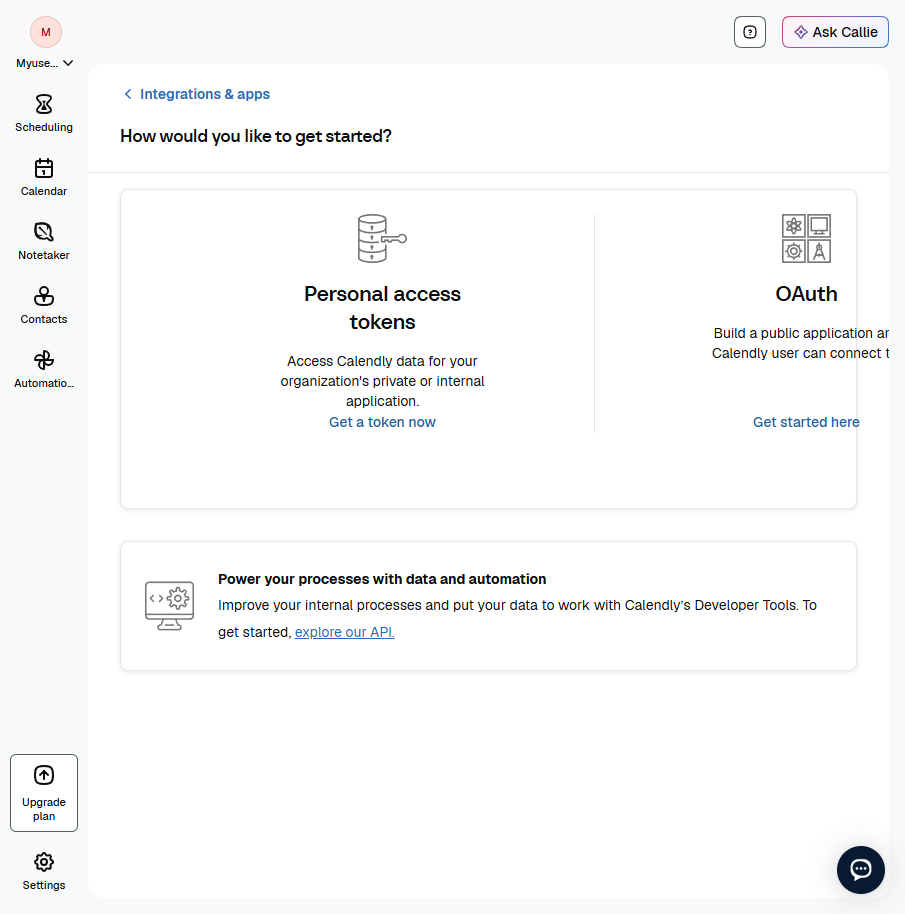
Step 2: Name the token and pick the scopes
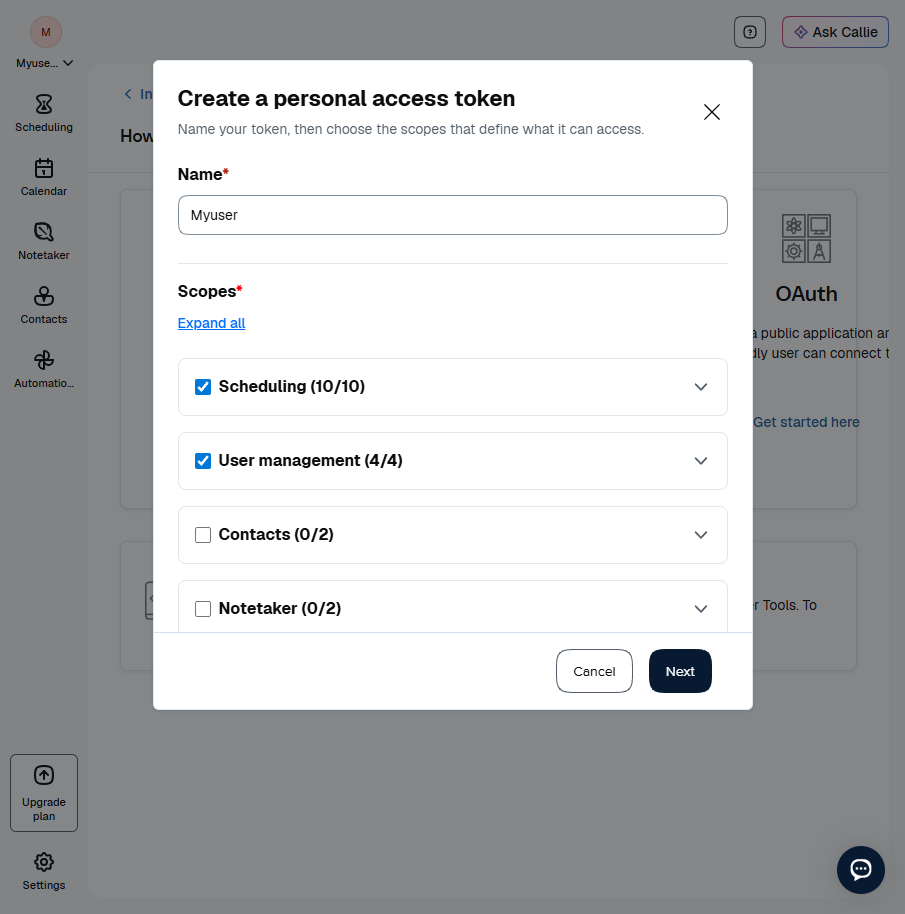
- Name: enter Myuser so you recognize it later.
- Scopes: tick Scheduling and User management - that's everything
- Click Next.
Myuser needs (reading who booked and which organization the token belongs to). You can leave Contacts, Notetaker, Security & Compliance and Webhooks unticked.
Step 3: Verify with the emailed code
Calendly emails you a 6-digit verification code - check your inbox and type it in. The token appears right after.
Step 4: Copy the token
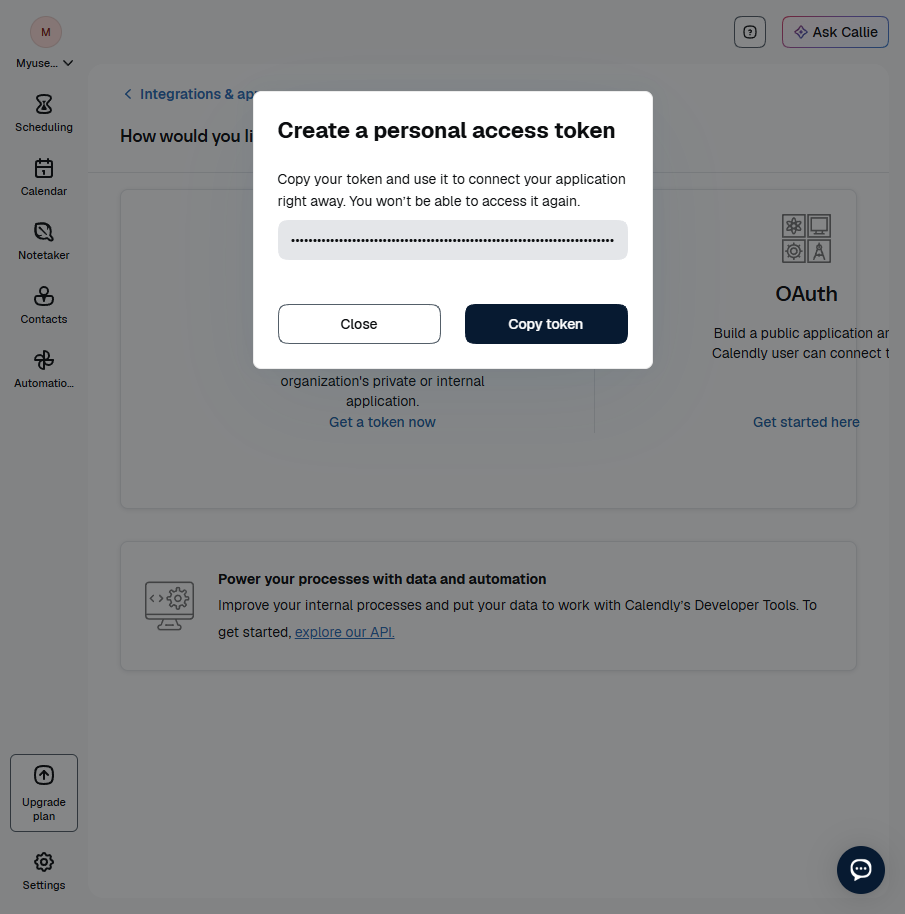
Click Copy token - Calendly shows it only once. It is a long value starting with eyJ.
Step 5: Paste the token in the Myuser dashboard
In the Myuser dashboard, open the product you want to connect, go to Integrations, open the Calendly card, paste the token and click Save Calendly.
Congratulations - you're all set! From now on Myuser checks your Calendly a few times a day and records every booked meeting.
What Myuser does with this access
- Reads your scheduled events and who booked them (name + email).
- Matches invitees against your campaign leads - by email first; if the email
- Marks matched leads as Meeting booked - via Calendly and stores every
doesn't match, optionally by company domain and an enrichment lookup (the checkbox on the card controls this).
booking (matched or not) so "who booked meetings with us" is always answerable.
Need Help?
If you have any questions or encounter issues during this integration process, please reach out to our support team - we're always here to assist!
Happy Integrating!